Enter a Self-Service Order
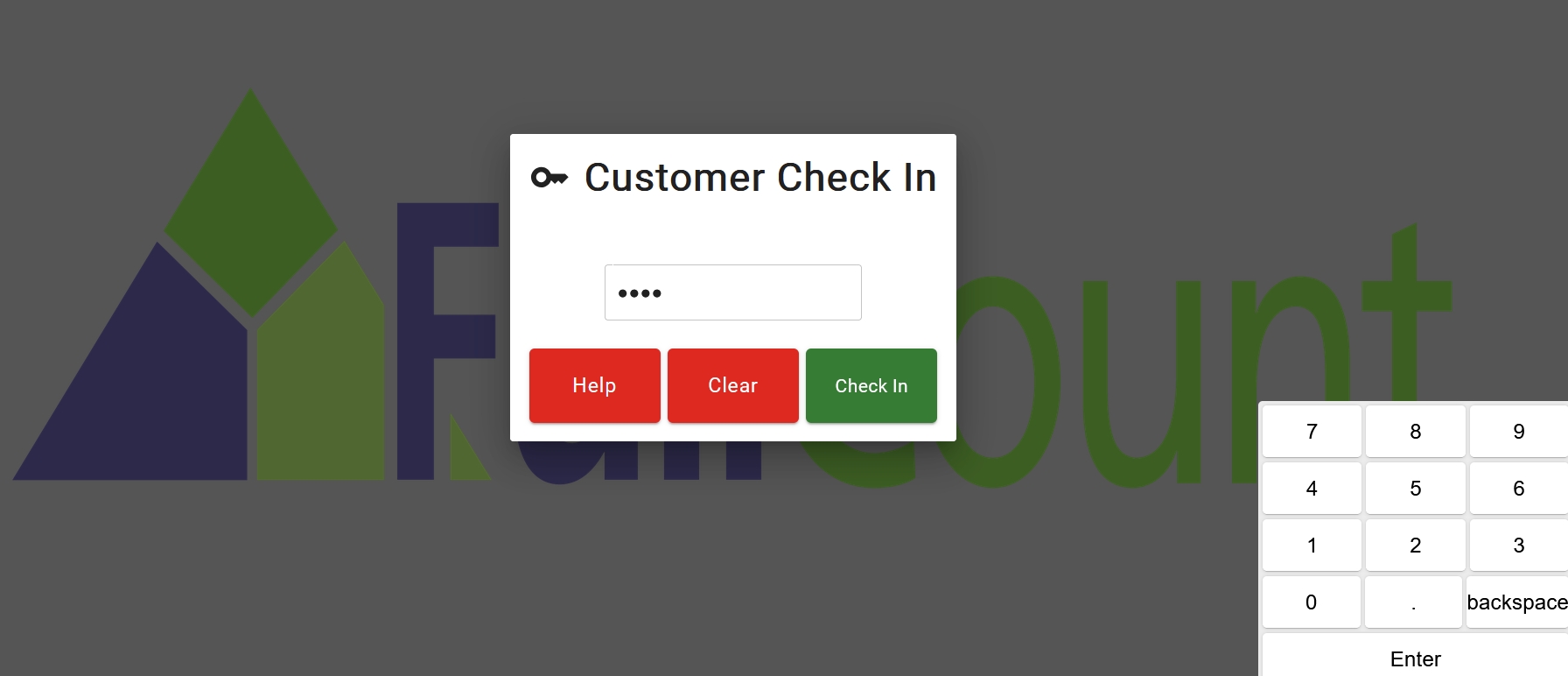
- If the screen says Touch to Continue at the top, touch the screen to bring up the Customer Check In prompt. (Depending on set up, you might not have Touch to Continue and instead will have Customer Check In Defaulted at that start.)

- At the Customer Check In screen, scan your card on the proximity reader to check in, or use the keypad to type in your code (If your system is configured to have the keypad) and press the green Check In button. If the customer is unable to check in, a staff member can use the Help button to navigate to a Search Customer option to help the customer get checked in. Some set ups may have a Continue as Guest option.
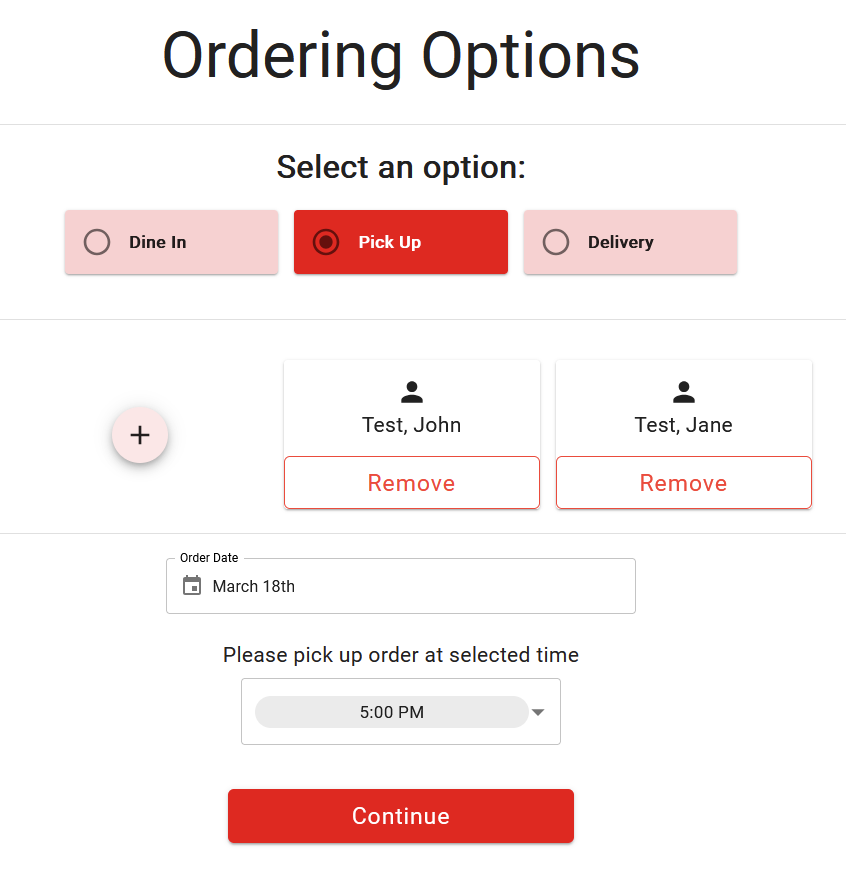
- Once checked in, depending on configuration, you may be presented with one or more ordering options to select from. Options may include: Mode, dining location, persons, order date, or order time. Once your desired options have been selected, press the Continue button to begin ordering.
- Select the desired menu to begin ordering.
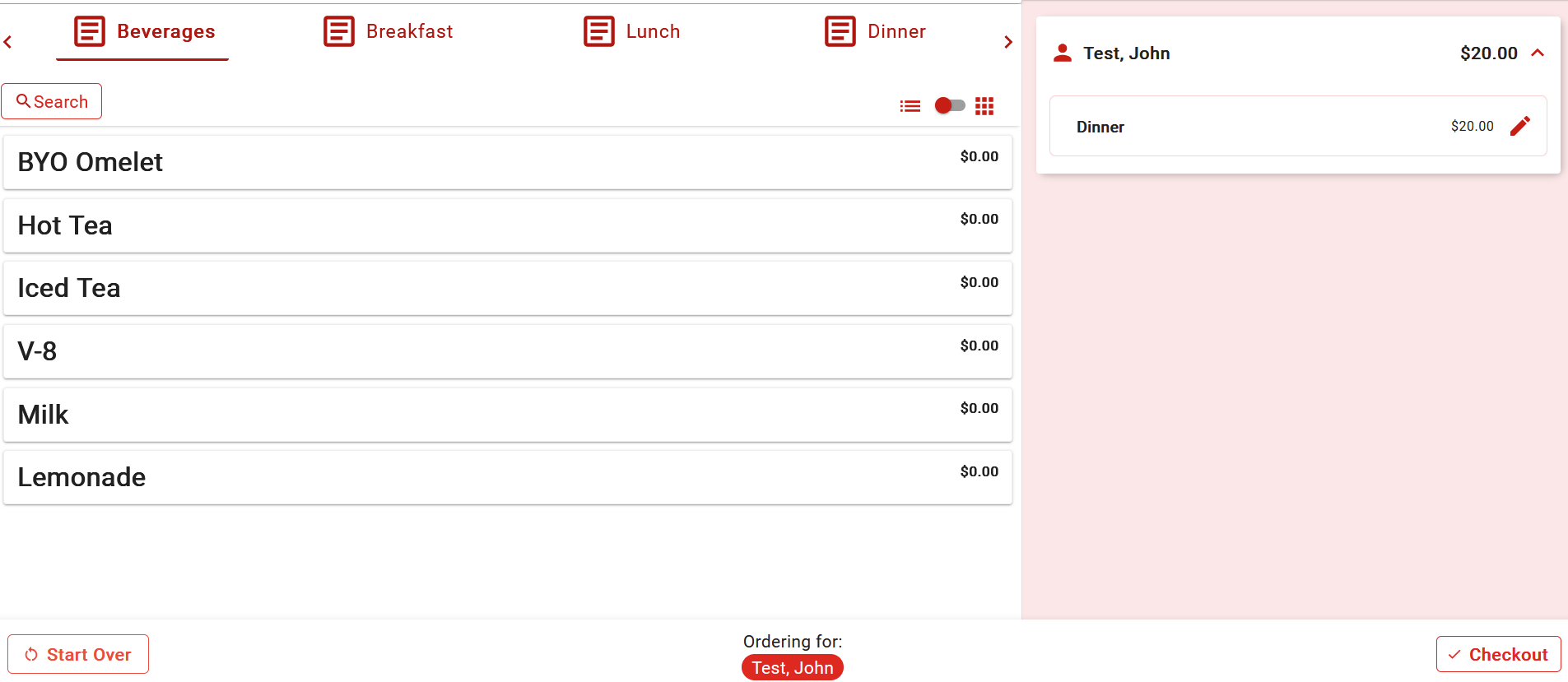
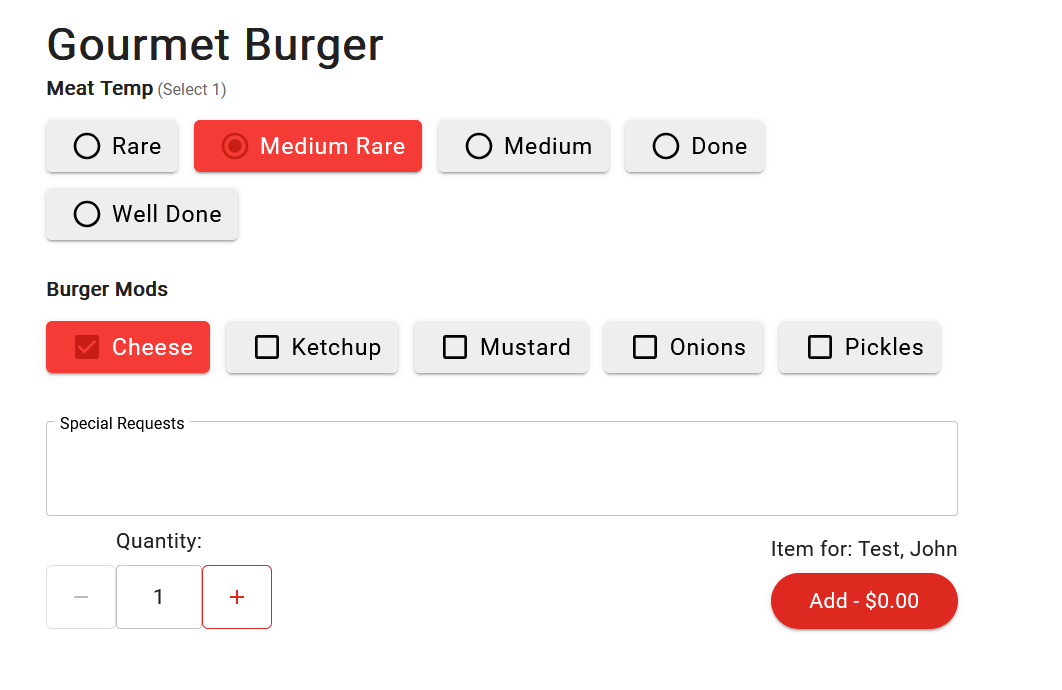
- Selecting an item will add it to the cart on the right side of the screen but may first prompt you with any modifier options or choices.
- If a mistake is made with the order, the pencil icon can be used to edit any existing selections. The trash can icon can be used to delete selected items from the order.
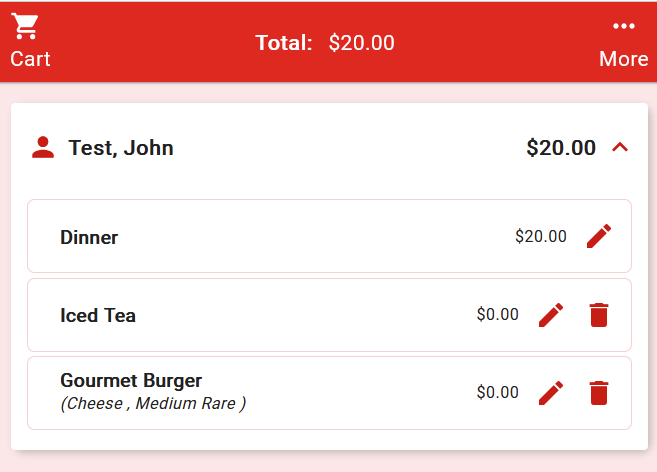
- Once you are satisfied with their order, select Checkout in the bottom right of the screen.
- Upon hitting check out, depending on the configuration it will close to your account or prompt you to select a form of payment such as account, gift card or credit card.
Once the order is submitted, you will have a prompt to email the receipt, view the receipt or press Continue to exit and allow the next customer to start the process. The countdown timer shows the amount of time remaining before the system automatically exits to allow the next customer to start the process.
Related Articles
Complete a Common Retail Order
Complete a Common Retail Order The Touchscreen can operate several mode-types. Most counter-side venues are recommended to operate in Retail Mode. Every setup is unique, and the steps below may not reflect the exact process at your organization. ...
Enter An Online Order
FullCount Engage allows community users to place an order online. To access Online Ordering, you will need the FullCount Engage App or URL, username, and password. To enter an online order, follow the steps below: *NOTE: For security purposes, ...
Complete a Common Store Order
The FullCount Touchscreen can operate is several mode-types. Most counter-side service venues will operate in Store Mode. Every setup is unique, and the steps below may not reflect the exact process at your community. Nevertheless, the general ...
Partner Tech Alfred AD-215 Quick Start Guide
The Partner Tech Self Service Kiosk is composed of the Partner Tech A7 monitor (a), the counter top stand (b) with built-in barcode scanner and printer, and the floor stand (c). Monitor - Partner Tech A7 The A7's power button (d) is located on the ...
Find an Epson Service Provider
If your community’s receipt or kitchen printer is no longer under warranty, a local authorized Epson Service Provider may help repair a faulty printer with a serviceable problem. This article may pertains to the follwing Epson printer models: To find ...