Access the Support Drawer on an Android Tablet
If a customer experiences an issue using the FullCount app on an
Android tablet, FullCount Support may request information from the app's
Support Drawer. The Support Drawer includes tablet information,
wireless network settings, and other advances setting options. It can be
accessed at any time from any page within the FullCount App.
*NOTE: For instructions on installing the FullCount App onto your Android device, click HERE.
Open the Support Drawer
To access the Support Drawer within the FullCount app, follow the steps below:
- Open the FullCount App on your Android tablet.
- Quickly and repeatedly tap the Back Button.
- After 8-10 taps, a blue side screen will appear on the left side of
the tablet touchscreen. This Support Drawer contains network
information and troubleshooting options to help your FullCount support
team member find the solution to the problem.
*NOTE: Galaxy Tab S4 and later models do not have physical buttons. The Back Button can
be accessed in the FullCount app by swiping up from the bottom of the
screen to reveal the navigation bar. You may need to change the
navigation bar settings on your device.
The top half of the Support Drawer displays networking information
about your device. Below this information are several clickable
features. The functions of these features are described below.
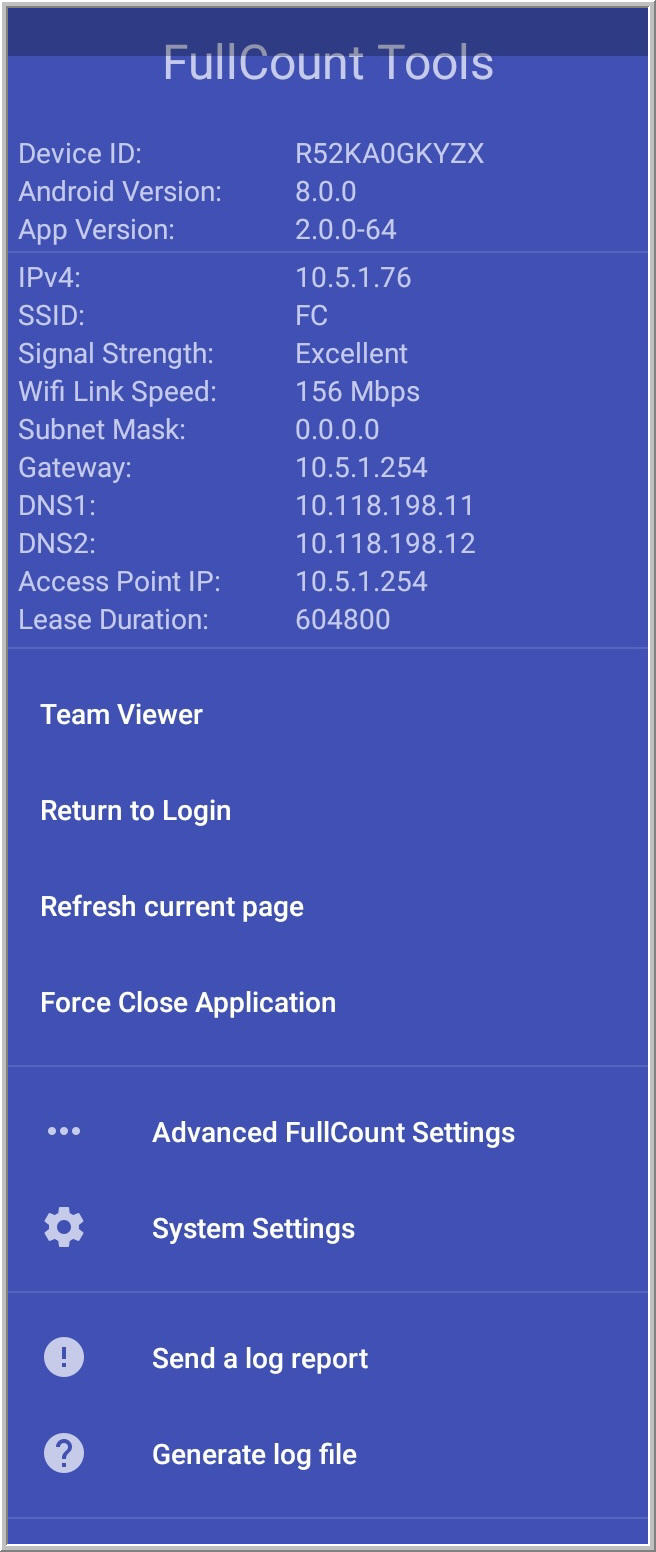 |
- Team Viewer: Selecting the Team Viewer feature
will direect you to the TeamViewer app in the Google Play Store. You
can use this feature to setup the TeamViewer app on new devices.
- Return to Login: Press the Return to Login feature from anywhere within the FullCount app to log out of your current session and return to the main FullCount login screen.
- Refresh current page: Press the Refresh current page feature from anywhere within the Fullcount app to reload the screen you are currently using.
- Force Close Application: Selecting the Force Close Application feature with shut down the FullCount app from any page and return you to the tablet Home Page.
- Advanced FullCount Settings: [See the Advanced FullCount Settings section below]
- System Settings: Selecting System Settings will redirect you to the Connections option in your tablet's Settings app to view or adjust the network your tablet is using.
- Send a log report: This feature will
only be used to help troubleshoot issues you may be having with the
FullCount application. You will not need to use this feature unless
directed to do so by a FullCount Support Team member.
- Generate log file: This feature will
also only be used to help troubleshoot issues you may be having with the
FullCount application. You will not need to use this feature unless
directed to do so by a FullCount Support Team member.
|
The Advanced FullCount Settings featured in the Support Drawer offers
several additional options for users, but differs slightly between
Samsung models. These settings are rarely used and are turned off as the default.
Samusung Tab A (32 Bit)
|
|
- Application Timeout: Like most
applications, the FullCount app will continue to run in the background
of your Android device when it is not in use. Selecting the Application Timeout will
allow you to set a time for the application to close if it is not
running in the foreground. This will occur if another application is
being used, if the device is put to sleep, or if the device is turned
off.
- Forced Update Override: The FullCount
application is regularly updated to maximize performance. Users will be
prompted at the Login screen to download these new updates when they are
available. The Forced Update Override feature is only
used if you have problems downloading these new updates. If this occurs,
we recommend contacting FullCount Support so that we can help you
resolve this issue.
- Enable Keyboard Focus: The Enable Keyboard Focus feature
will only be used in special cases in connection with a FullCount
barcode scanner. If you are using a barcode scanner with your tablet, a
FullCount Support Team member can walk you through setting up this
feature if it is needed.
- Invert Screen Orientation: On Samsung Tab A models, the FullCount application does not feature automatic screen rotation. The Invert Screen Orientation feature allows you to rotate the application 180o,
flipping the view on the device. After toggling the feature, you will
need to restart the FullCount application for the change to take effect.
|
Samsung S2 and Later (64 bit)
|
|
- Application Timeout: Like most
applications, the FullCount app will continue to run in the background
of your Android device when it is not in use. Selecting the Application Timeout will
allow you to set a time for the application to close if it is not
running in the foreground. This will occur if another application is
being used, if the device is put to sleep, or if the device is turned
off.
- Forced Update Override: The FullCount
application is regularly updated to maximize performance. Users will be
prompted at the Login screen to download these new updates when they are
available. The Forced Update Override feature is only
used if you have problems downloading these new updates. If this occurs,
we recommend contacting FullCount Support so that we can help you
resolve this issue.
- Enable Keyboard Focus: The Enable Keyboard Focus feature
will only be used in special cases in connection with a FullCount
barcode scanner. If you are using a barcode scanner with your tablet, a
FullCount Support Team member can walk you through setting up this
feature if it is needed.
- Allow Screen Rotation: The FullCount
app downloaded on Tab B and later Samsung model tablets will default to
allow automatic screen rotation within the application. The Allow Screen Roation feature
allows you to disable automatic screen rotation and select a set view
for the FullCount app. Disabling screen roation enables the Invert Screen Orientation feature.
- Invert Screen Orientation: This feature is only accessible if the Allow Screen Rotation feature is disabled. The Invert Screen Orientation feature allows you to rotate the application 180o, flipping the view on the device. This change will take effect immediately.
|
Related Articles
Set Up an Android Tablet
Set Up an Android Tablet FullCount software is compatible with certain models of Android tablets. When new tablets are purchased and licensed, the customer will need to install two apps onto each device: the FullCount Terminal App to access the ...
Open & Close a Cash Drawer Balance
If a community venue allows customers to pay with cash for FullCount transactions, an employee will need to set up a Cash Drawer Balance at the beginning of each day. When the venue closes, the Cash Drawer Balance will also need to be closed. While ...
Partner Tech Tablet Quick Start Guide
This article will discuss features of the Partner Tech point-of-sale rugged tablets (Either M3W or M10 models). Tablet The tablet's power button (a) is located on the left side of the tablet. To turn on the tablet, press and hold the power button ...
Cyprus/S-Line II Terminal Quick Start Guide
*NOTE: This article is specifically for the newer Cyprus/S-Line II model. For the older StealthTouch/S-Line II/model, click HERE. Touch Screen A user can adjust their view of the touch screen by tilting the monitor up or down. Tilting the monitor is ...
StealthTouch/S-Line Terminal Quick Start Guide
This article will discuss the features of the StealthTouch or S-Line point-of-sale terminal. *Note: This model of terminal is no longer sold, for the quick start guide for the current model please click here. Power Button The power button (a) is ...


